Windows 10/11 Settings
Disable Hardware-accelerated GPU scheduling (HAGS).
Start Menu » Graphics settings » Off
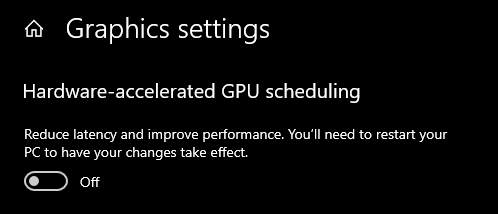
Windows Updates have been known to break this function often so it's best not to gamble with it.
You will need to restart PC to apply these changes.
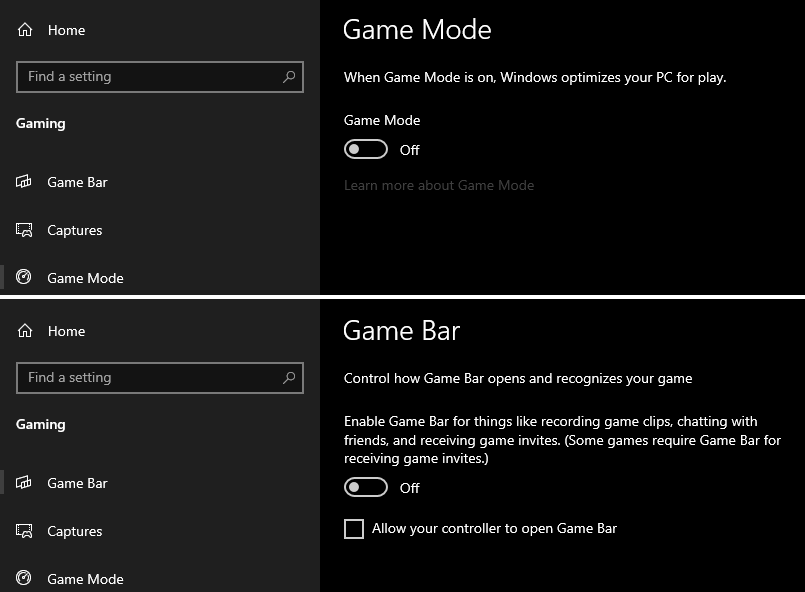
Disable Game Bar & Game Mode.
You can find both settings in the same location by going to:
Start Menu » Game Mode settings » Turn both off in each of their own tabs
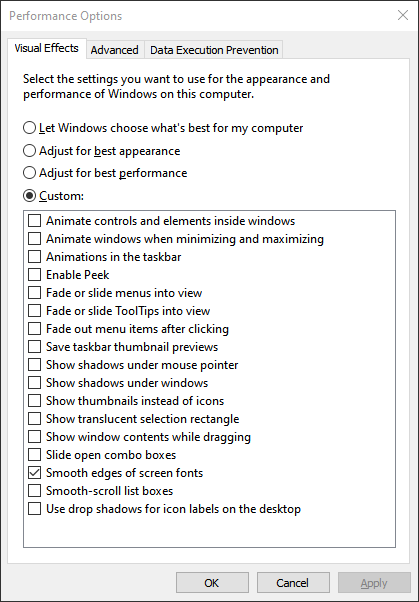
Adjusting Desktop Visual Effects to prefer maximum performance.
This adjustment matters less for high-end PC(s) but you may see some increased responsiveness.
Start Menu » Adjust the appearance and performance of Windows
Select the Custom profile option & make sure only Smooth edges of screen fonts is selected.
Optionally also make sure Show thumbnails instead of icons is checked too for image thumbnails.
Click Apply. Click OK.
NVIDIA Control Panel
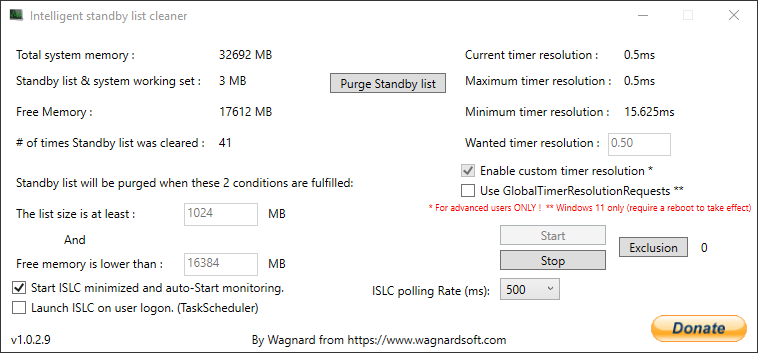
Automatic RAM Cleaner
Current RAM Cleaner found in-game isn't all that great but you can use an alternative with similiar settings like the below called ISLC.
The Free memory is lower than setting should be set to 16384 if you have 32GB of RAM, or 8192 if you have 16GB of RAM. Those are
exact numbers but just simply using 16000 or 8000 to be lazy won't hurt anything.
Enabling the timer resolution feature of this program will make everything feel a lot more snappy too.
If you want this program to start up each time you restart your computer you can make sure the following setting is checked.
- Launch ISLC on user logon. (TaskScheduler)
This program can be downloaded from here.